Export Your Webex Meetings for AI, Archives, and Automation
February 27, 2026
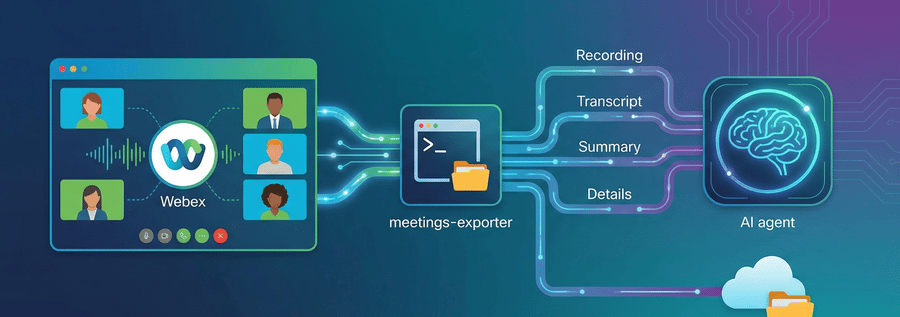
Ever finish a Webex meeting and think, "I wish I could automatically save that recording, transcript, and AI summary somewhere useful"? Maybe you want to feed meeting insights into an LLM, build a searchable company knowledge base, or just keep a clean archive without clicking through the web interface every time.
Today we're open-sourcing meetings-exporter—a Python CLI that does exactly that. Export everything from a Webex meeting into a tidy folder structure or straight to Google Drive, ready for your AI assistant to analyze.
anchorWhat It Does
anchormeetings-exporter pulls together the full picture of your meetings:
- Meeting details – Title, date, time, host, and participants
- Recordings – Video files (MP4, WebM, M4A) downloaded and saved locally
- Transcripts – VTT or plain text, ready for search or analysis
- AI summaries – Webex Meeting Summaries API output (summary text + action items)
Each meeting gets its own folder, named like 2026-02-05 14-00 - Project Kickoff, so everything sorts chronologically and stays easy to find.
anchorWho It's For
anchor- AI enthusiasts – Feed transcripts and summaries into Gemini, Claude, ChatGPT, or custom LLMs for post-meeting analysis, automated follow-ups, or knowledge extraction
- Compliance teams – Maintain compliant, searchable archives with local or cloud backups
- Automation engineers – Trigger exports programmatically—call
export_meeting()from Python or use webhooks for zero-touch automation - Integration builders – Extend with new backends (OneDrive, Slack, Dropbox) without touching core logic
It's designed to be simple for quick one-off exports and flexible enough to plug into bigger systems—or your AI assistant's workflow.
anchorSupercharge Your AI Assistant
anchorImagine finishing a meeting and having Gemini, ChatGPT, or Claude instantly ready to:
- Generate follow-up emails from the transcript and action items
- Extract key decisions and add them to your project tracker
- Answer questions like "What did Sarah commit to in last week's meetings?"
- Create stakeholder summaries without re-watching recordings
- Build a searchable knowledge base across all your team's meetings
With meetings-exporter, your meeting data becomes AI-ready the moment the meeting ends. Export to Google Drive, point your AI assistant at the folder, and let it work its magic. No manual downloads, no copy-paste, no switching between tools.
Example workflow:
- Meeting ends → webhook triggers automatic export to Google Drive
- Gemini reads
transcript.txtandsummary.txtfrom your Drive folder - You ask: "What action items came out of this morning's sync?"
- Gemini responds with a clean list, complete with context and owners
The same workflow works with ChatGPT's file uploads, Claude's Projects feature, or any custom RAG pipeline you build.
anchorBefore You Start
anchor- Python 3.11+ installed (we use modern type hints and
tomllib) - A Webex account with meeting history
- Your Personal Access Token
- (Optional) A Google Cloud project for Drive exports
⚠️ Security Note: Personal Access Tokens grant full access to your Webex account. Never commit .env to version control. For production use, consider using OAuth or a service account with scoped permissions.
anchorQuick Start
anchorgit clone https://github.com/WebexSamples/meetings-exporter.git
cd meetings-exporter
python3 -m venv .venv && source .venv/bin/activate
pip install -e ".[dev]"
cp env.template .env
# Edit .env and set WEBEX_ACCESS_TOKEN
List your recent meetings:
meetings-exporter list --from 2026-02-01 --to 2026-02-28 --max 10
Export a single meeting to a local folder:
meetings-exporter export MEETING_ID --output-dir ./exports
Export all meetings in a date range:
meetings-exporter export --from 2026-02-01 --to 2026-02-28 --output-dir ./exports
No Google or cloud setup is required for local export—just your Webex token.
Note: The Webex APIs have rate limits. When exporting large date ranges, the tool automatically throttles requests. For very large archives (100+ meetings), consider running overnight or in batches.
anchorWebhook Server: Auto-Export on Events
anchorWhen your meeting ends, Webex POSTs a JSON payload to your webhook server. The tool extracts the meeting ID, acknowledges the event instantly (so Webex doesn't retry), then exports everything in the background—no manual intervention required.
How it works:
- Run
meetings-exporter webhook --port 8080and expose it via ngrok (or another tunnel) so Webex can reach it. - Register webhooks with Webex:
meetings-exporter webhook register --url https://your-ngrok-url.ngrok-free.app - When a meeting ends, a recording is created, or a transcript is ready, Webex POSTs to your
/webhookendpoint. - The server responds with 200 immediately, then runs
export_meeting()in a background thread. - The full export runs—meeting details, participants, recordings, transcript, summary—and writes to your configured backend (local folder or Google Drive).
Events we listen for:
meetings.ended– Meeting has endedrecordings.created– Recording is available for downloadmeetingTranscripts.created– Transcript is ready
You can optionally set WEBEX_WEBHOOK_SECRET in .env to verify the X-Spark-Signature header and reject forged requests. When done testing, run meetings-exporter webhook unregister to remove the webhooks.
Troubleshooting Webhooks:
- Ngrok URL changes? Re-run
webhook registerwith the new URL - Not receiving events? Check
meetings-exporter webhook listto verify registration - Export failing silently? Check server logs—background threads don't print errors to console by default. Run with
--log-level DEBUGfor detailed output.
anchorExport to Google Drive
anchorIf you prefer cloud storage (and want your AI assistant to access it), configure EXPORT_BACKEND=google_drive and your Google OAuth credentials in .env. The same folder structure (meeting details, transcript, summary, recordings) is uploaded to Drive. You can optionally set GOOGLE_DRIVE_FOLDER_ID to target a specific folder.
This makes it trivial to grant Gemini, ChatGPT, or your custom AI agent read access to all your meeting data—just share the Drive folder.
anchorWhat You Get
anchorEach exported meeting produces a folder like this:
2026-02-05 14-00 - Q1 Planning Session/
  meeting_details.txt   # Title, date, host, participants
  transcript.vtt        # Or transcript.txt
  summary.json          # Raw Meeting Summaries API response
  recording_1.mp4       # 45 minutes, 1080p
Everything is normalized and ready for downstream tools—or your AI assistant. The summary.json gives you the full Meeting Summaries API payload if you want to build custom parsers or integrations.
anchorHow We Built It
anchormeetings-exporter is built on two Webex API families. Here's what we use and where to find the docs.
Webex Meetings API
The Webex Meetings API gives us meeting metadata, participants, recordings, and transcripts. We call these endpoints:
- List Meetings – Lists past meetings in a date range. We use
meetingType=meetingso we only get individual instances (series don't support transcripts or summaries). - Get a Meeting – Fetches title, start/end time, host, and other metadata for a single meeting.
- List Meeting Participants – Returns attendees with display names and emails for
meeting_details.txt. - List Recordings – Lists recordings for a meeting (IDs, host email, format).
- Get Recording Details – Returns
temporaryDirectDownloadLinks.recordingDownloadLink, a pre-signed CDN URL for the actual video file. We use this (notdownloadUrl, which points to a web page) to download the MP4/WebM/M4A binary. - Meeting Transcripts – Lists transcripts for a meeting. We use the
txtDownloadLinkfrom each item to download the VTT or plain-text content.
Meeting Summaries API
The Meeting Summaries API provides AI-generated summaries and action items:
- Get Summary by Meeting ID – Returns the summary text and action items for a meeting. We write the summary to
summary.txtand the full JSON response tosummary.json.
Architecture
We fetch all of this via a single WebexClient, normalize it into a MeetingData model, and pass it to pluggable exporters (local folder or Google Drive). The design makes it straightforward to add OneDrive, Dropbox, or other backends without changing the ingestion logic.
⚠️ Important: Summaries, recordings, and transcripts are available only for individual meeting instances (IDs like abc123_I_xyz789), not recurring series. Series IDs won't return this data. The tool filters for instances automatically when listing meetings, but if you manually pass a series ID to export, the export will be incomplete. Always export instance meetings, not series.
Contributions are welcome—see CONTRIBUTING.md for setup and code style.
anchorGet Started Now
anchor- Clone the repo:
git clone https://github.com/WebexSamples/meetings-exporter.git - Export your first meeting in under 5 minutes
- Connect your AI assistant to the export folder and start asking questions about your meetings
- Built something cool? Share it in the Webex Developer Community—we'd love to feature your project!
The repo lives at github.com/WebexSamples/meetings-exporter. Whether you're building an AI-powered meeting assistant, maintaining compliance archives, or just want your data in one place—meetings-exporter makes it simple.